Slide 1 • Visual Comparison
• Easy Field Breakdown
How the fields change
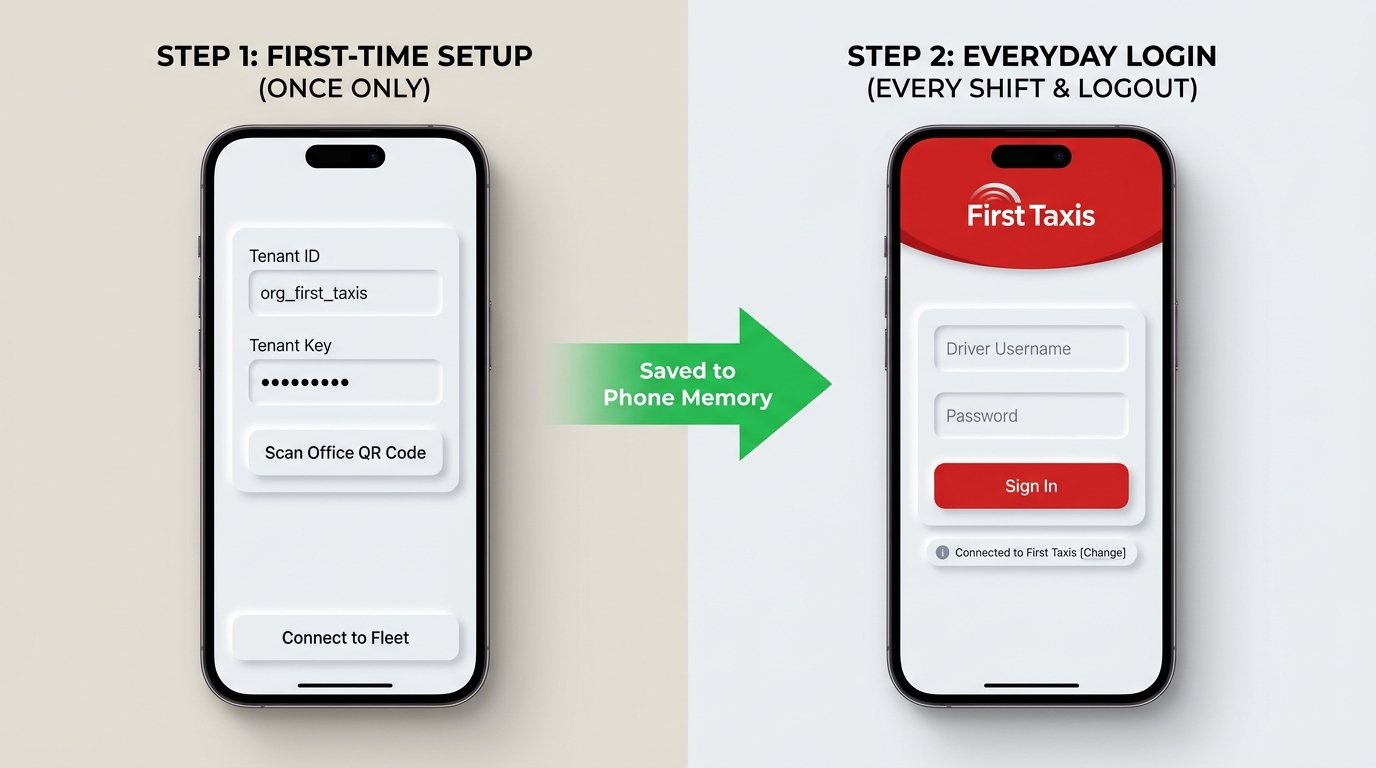
First-Time Setup vs. Everyday Shift Login
Once Only
1. Tenant / Company ID
Tells the app which company brand to load.
Once Only
2. Tenant / Fleet Key
Secret office key (or scanned via QR code) unlocking system.
Everyday Shift
3. Driver Username
Your personal driver username or badge number.
Everyday Shift
4. Password
Your driver password to authenticate and start your shift.
Tenant ID & Key are saved locally so you never have to re-type them
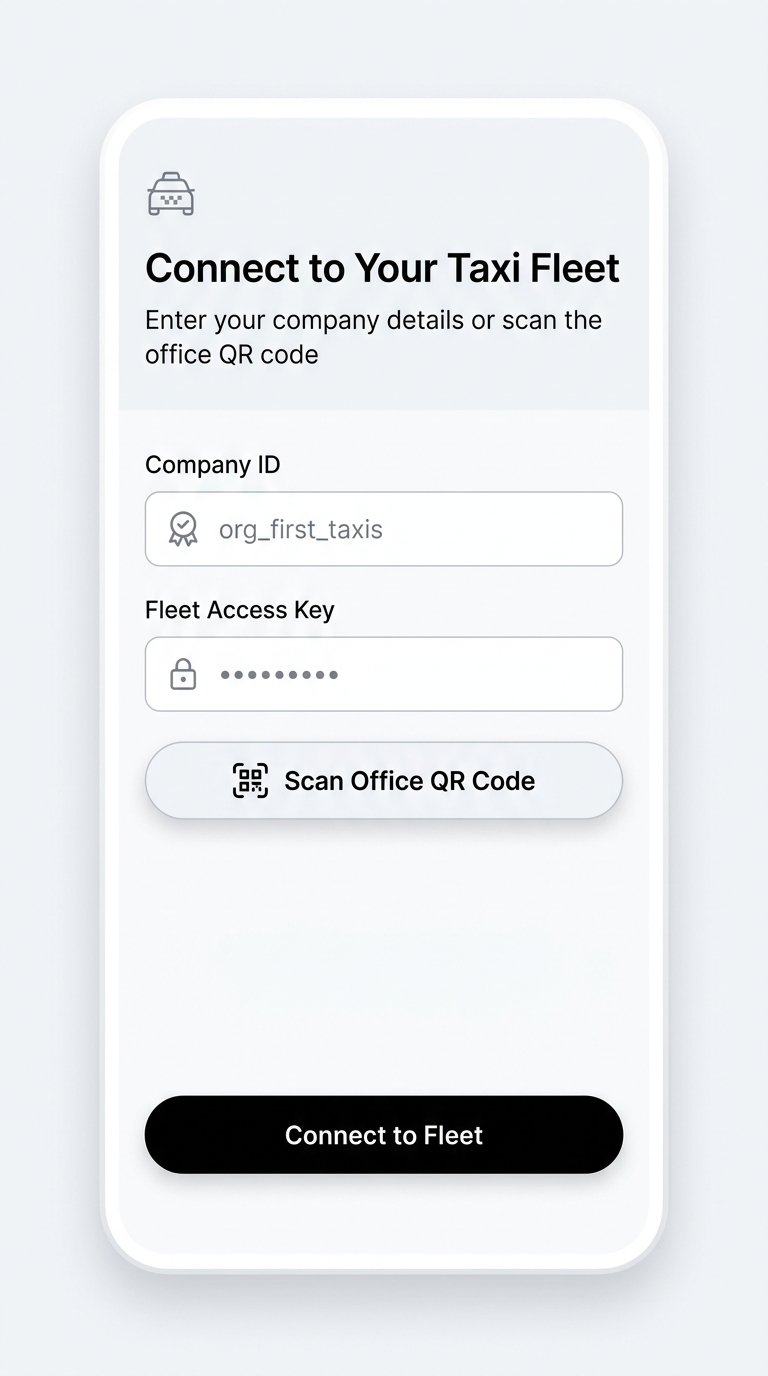
Slide 2 • Step 1
First-Time Setup (Done Once Only)
1-Tap QR Available
Connecting to Your Taxi Fleet
When you install and open the app for the very first time, choose between typing manually or scanning the office QR code:
keyboard
Option A: Manual Entry
Type Company ID & Secret Key provided by your fleet manager.
qr_code_scanner
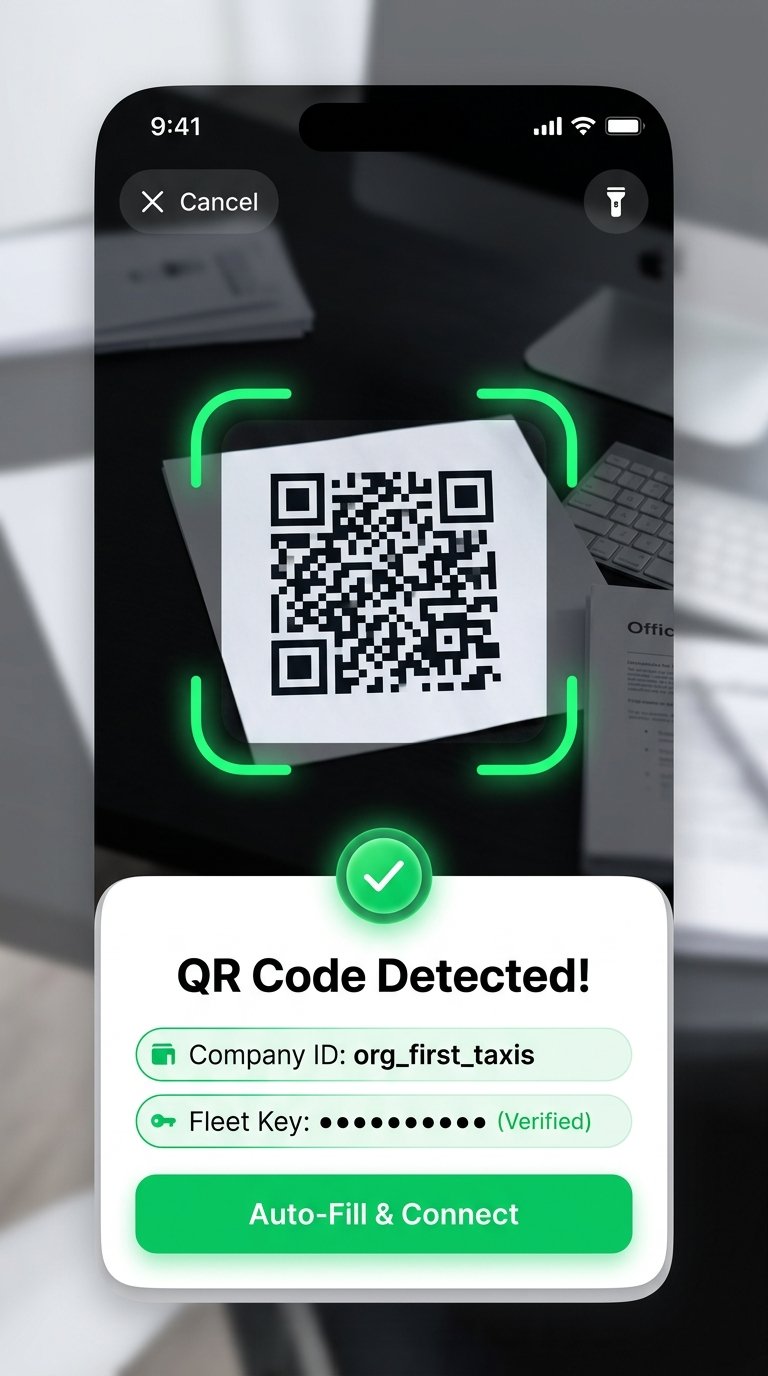
Option B (Fastest): 1-Tap QR Scan
Tap "Scan Office QR Code" and point camera at the office paper. The app instantly detects your fleet and auto-fills all fields!
lock
Saved Permanently in Phone Memory
Credentials and branding stay saved. You never have to repeat this step!
arrow_forward
Auto-Fills
Done only once upon first installation
Slide 3 • Step 2
Everyday Work (Fast & Clean)
Daily Shifts & Post-Logout Screen
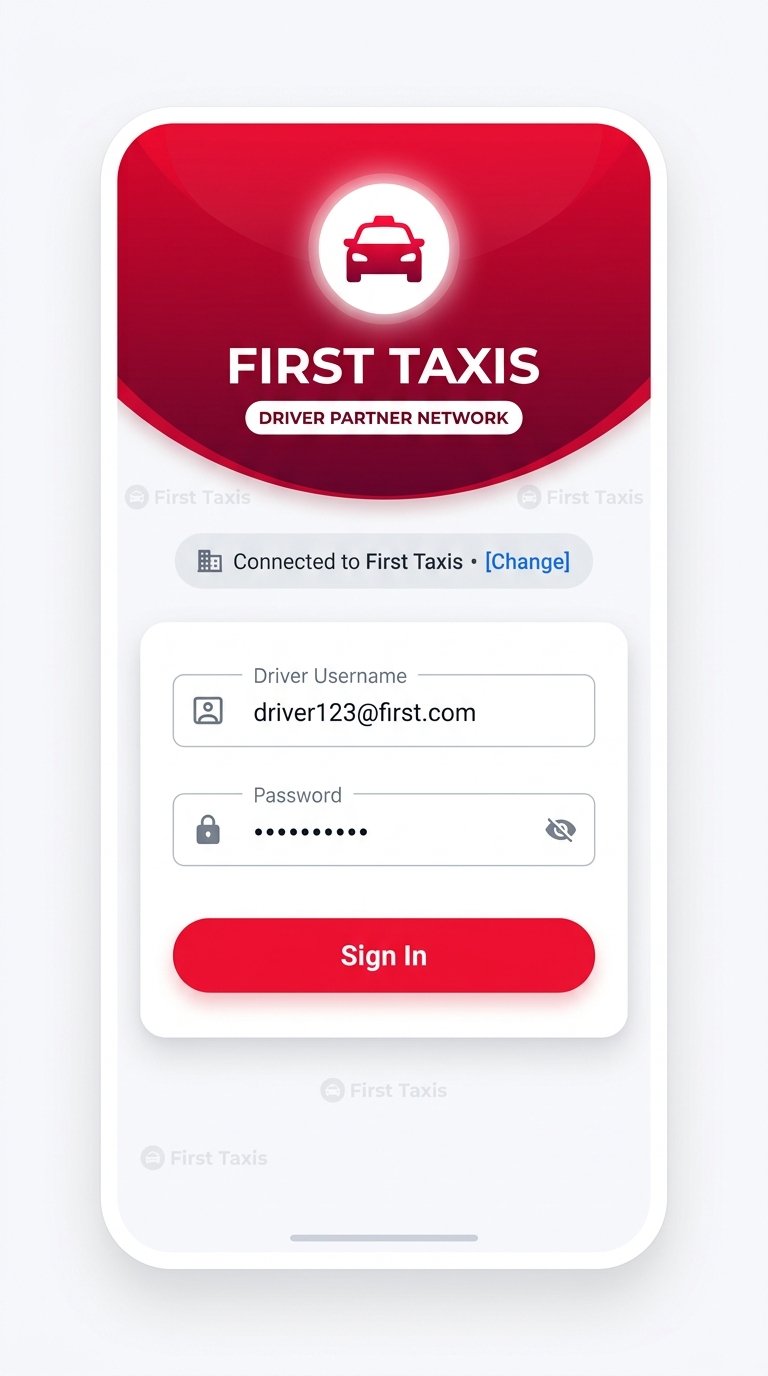
Once connected, you never have to enter the Company ID or Key again. The app is pre-dressed in your company's colors.
badge
Only 2 Input Fields
Simply enter your Driver Username and Password to start your shift.
palette
Always Branded
Company badge, red curved banner, and title are always visible so you know you're in the right portal.
logout
Seamless Logging Out
When you finish your shift and log out, it stays in your fleet's branding, waiting for your username/password next time.
Fast 2-field sign in every morning
Slide 4 • Step 3
Fleet Switching
Changing Companies from Settings
If you drive for multiple fleets or change taxi companies, you don't need to delete the app.
settings
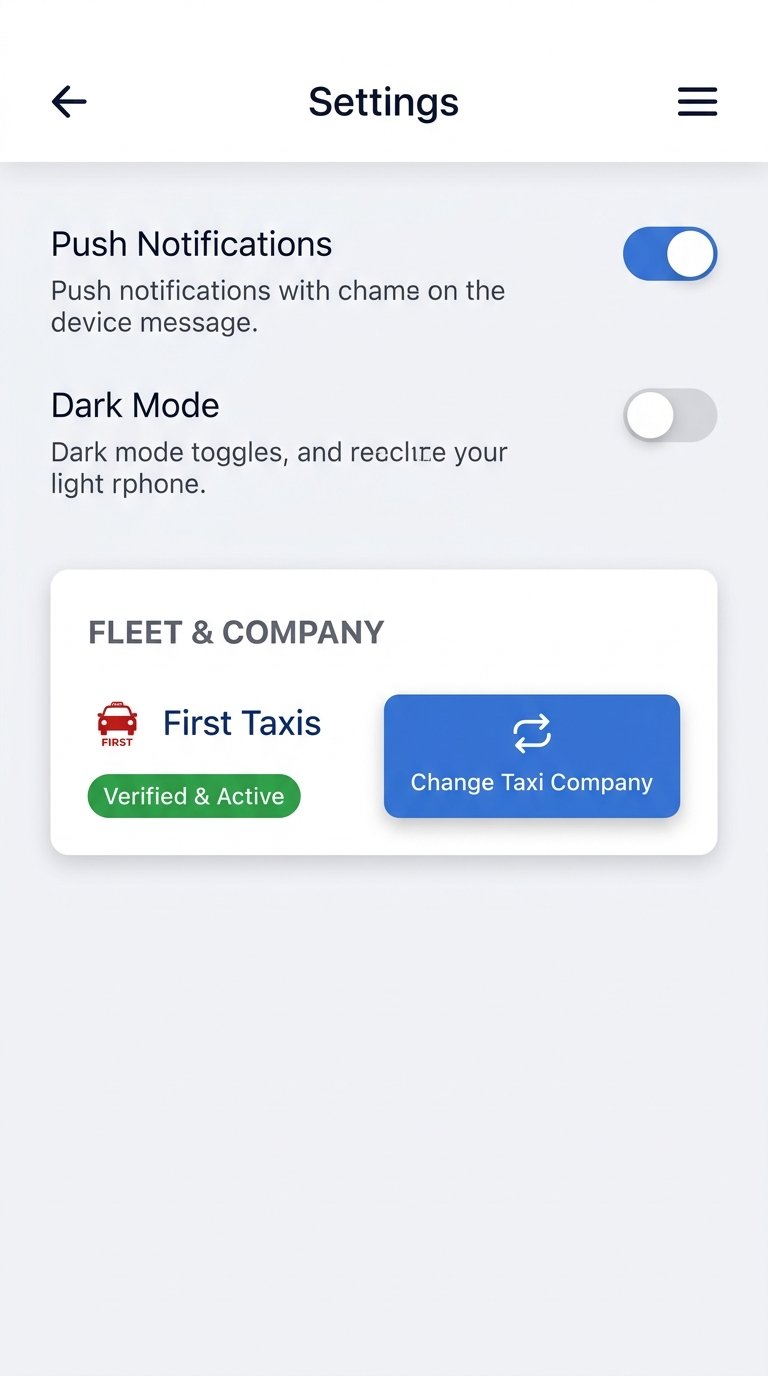
1. Open Settings Menu
Scroll down to the Fleet & Company section.
verified
2. View Current Status
Shows current fleet with a green Verified & Active badge.
sync
3. Tap "Change Taxi Company"
Enter the new company ID & key (or scan a new QR code). The app switches instantly!
Switch fleets anytime without reinstalling
Slide 5 • Summary
• Quick Reference & FAQs
Summary Cheat Sheet & Common Questions
table_chart When Do You See What?
- First Launch Company ID & Key (Once Only)
- Everyday Login Username & Password Only
- After Logout Username & Password Only
- Changing Company Settings ➔ Change Company
help Frequently Asked Questions
Do I enter the Company ID every morning?
No! Only once when first setting up. Daily shifts only require username and password.
What if I enter the wrong Company ID?
Tap the small [Change] button on the login screen to fix it immediately.
Can our office print a QR code?
Yes! Scanning the office QR code connects the driver automatically in 2 seconds.
End of presentation