Download Red Taxis for Android
Fast, Reliable & Affordable Rides at your Fingertips
Download APK
Click Download APK or scan the QR code to save RedTaxis-latest.apk to your device.
Allow Installation
If prompted by Android, permit "Install unknown apps" in your browser or file manager settings.
Install & Open
Open the downloaded APK from Notifications or Downloads folder and tap Install to launch.
First-Time Setup vs. Everyday Shift Login
Understanding which fields are configured once upon installation versus what is entered every morning.
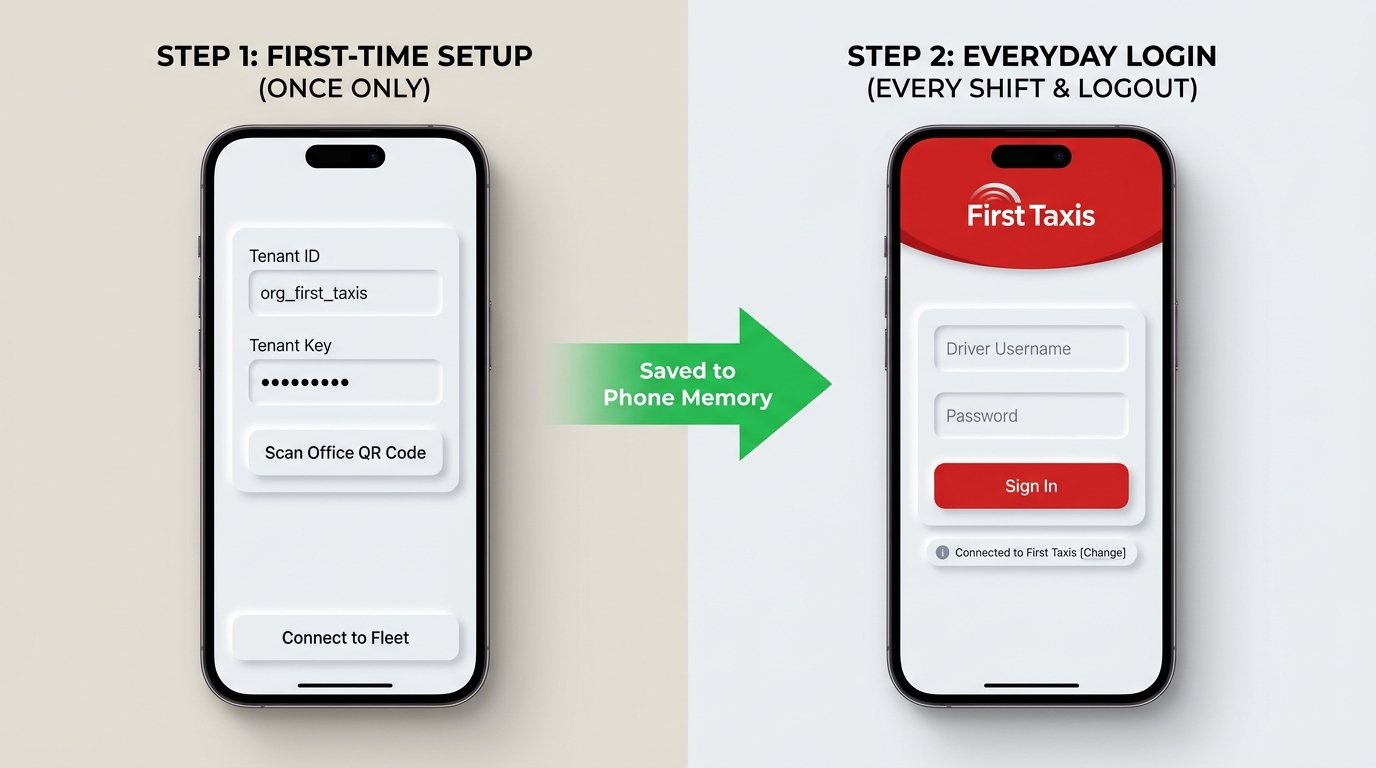
1. Tenant / Company ID
Identifies your taxi fleet (e.g. org_first_taxis) so the app loads the correct branding.
2. Tenant / Fleet Key
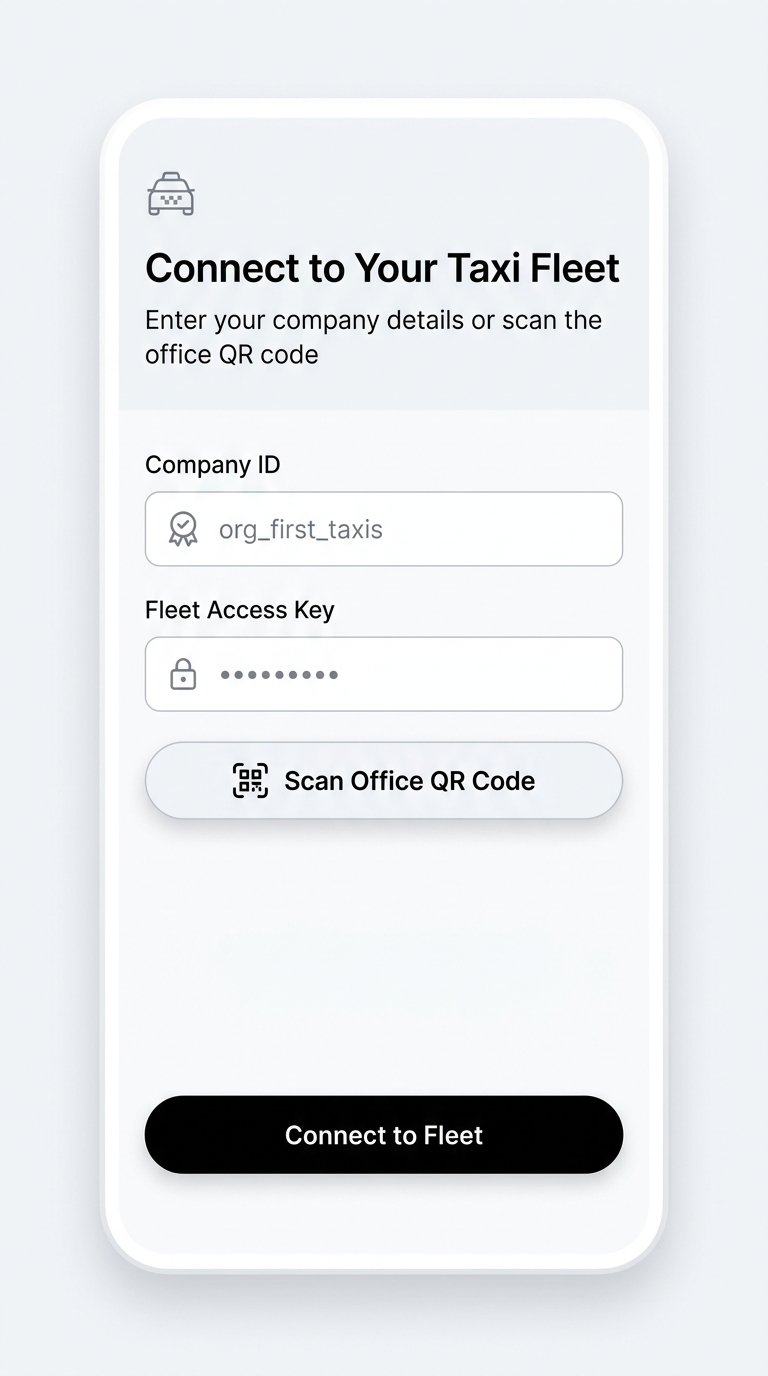
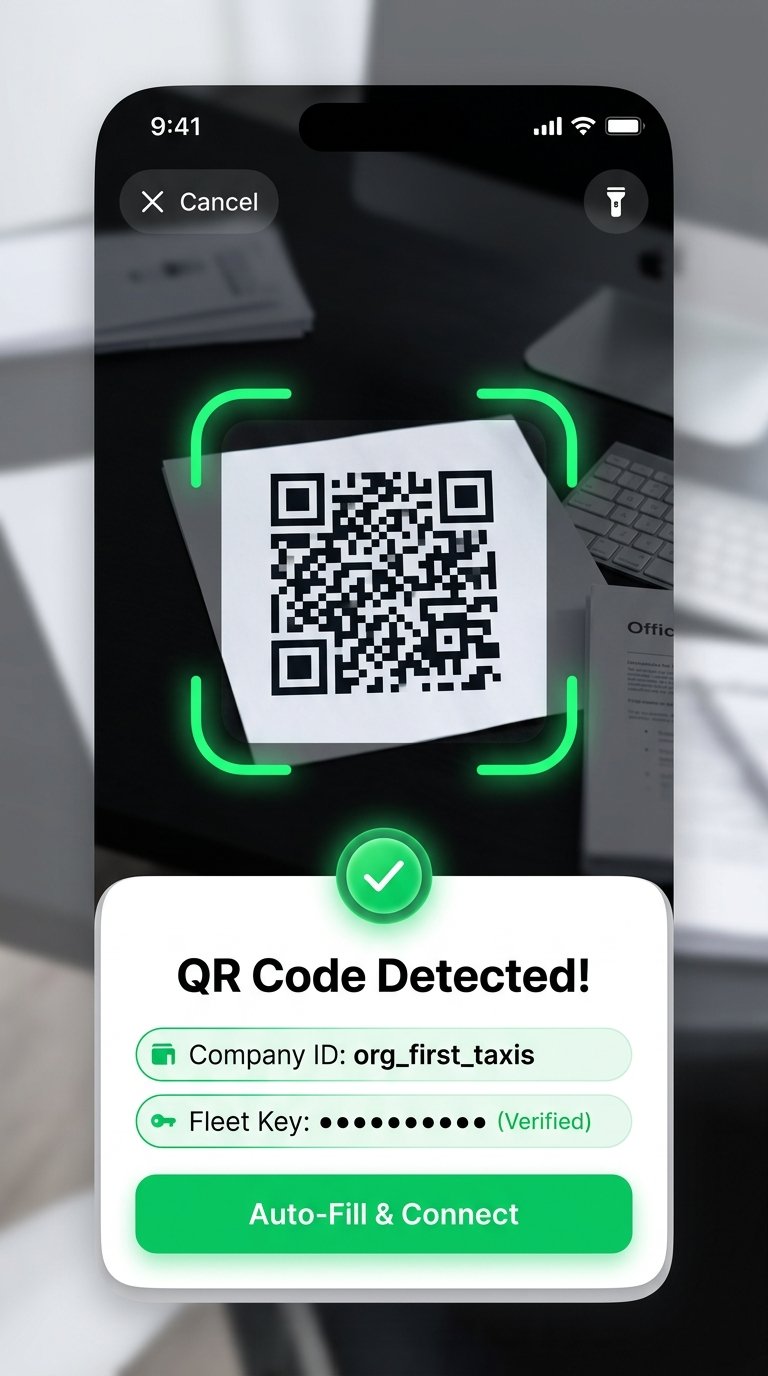
Office secret key (or auto-scanned via QR code) that securely unlocks your fleet system.
3. Driver Username
Your personal driver username, badge number, or official email address.
4. Driver Password
Your individual driver account password to authenticate and start shifts.
Connecting to Your Taxi Fleet
When you launch the application for the first time, you have two quick connection choices:
Saved permanently in phone memory — no repeated entry required.
Daily Shifts & Post-Logout Screen
Once connected, you never have to re-enter Company ID or Key. The app displays your company's full branding automatically.
Enter your Driver Username and Password to start accepting rides.
Custom colors and logo remain active so you know you are connected to the official fleet portal.
Logging out at end-of-shift safely retains your fleet configuration for the next morning.
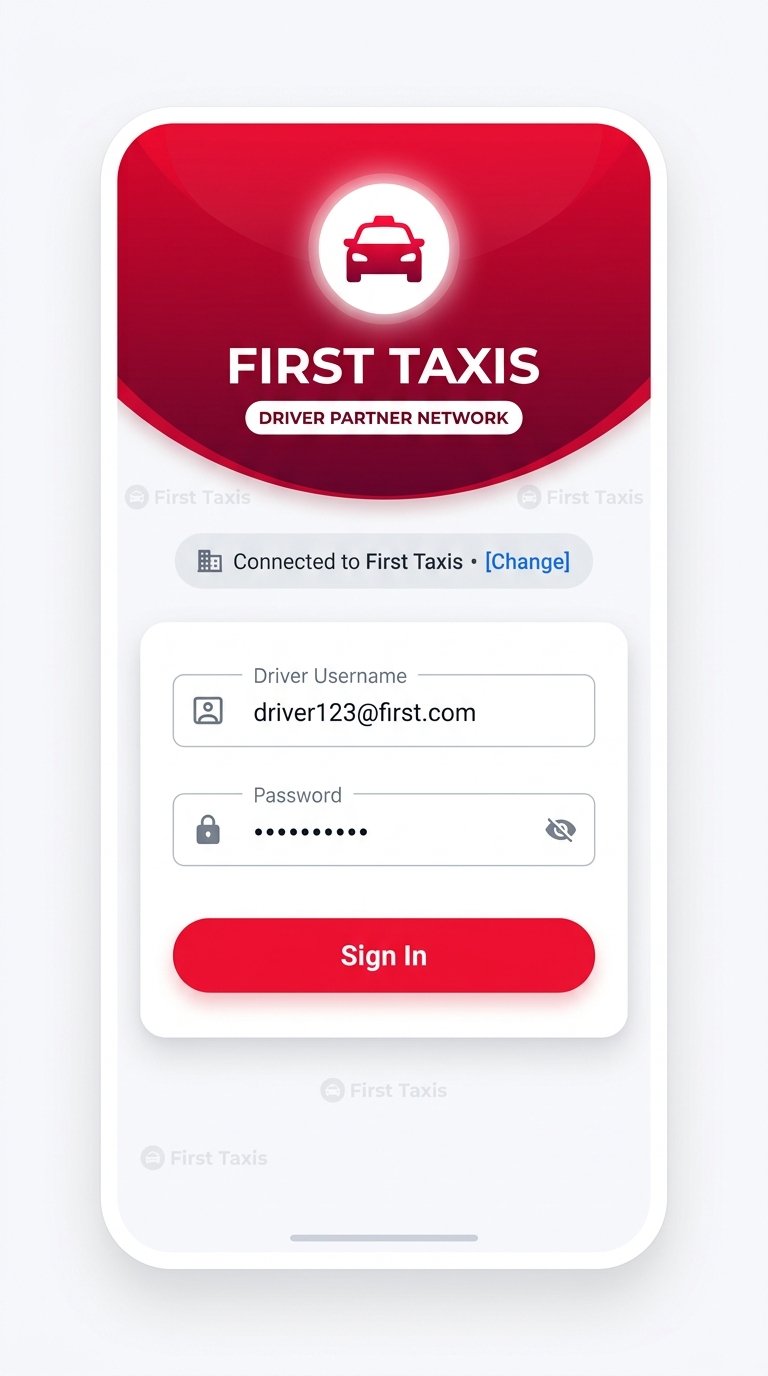 ● Daily 2-Field Login
Changing Companies from Settings
If you drive for multiple taxi fleets or switch companies, there is no need to reinstall or delete the app.
- Open Settings Menu: Navigate to the Fleet & Company section.
- View Status: Confirm your active fleet with the green Verified & Active badge.
- Tap "Change Taxi Company": Enter the new Company ID & Key or scan the new fleet QR code.
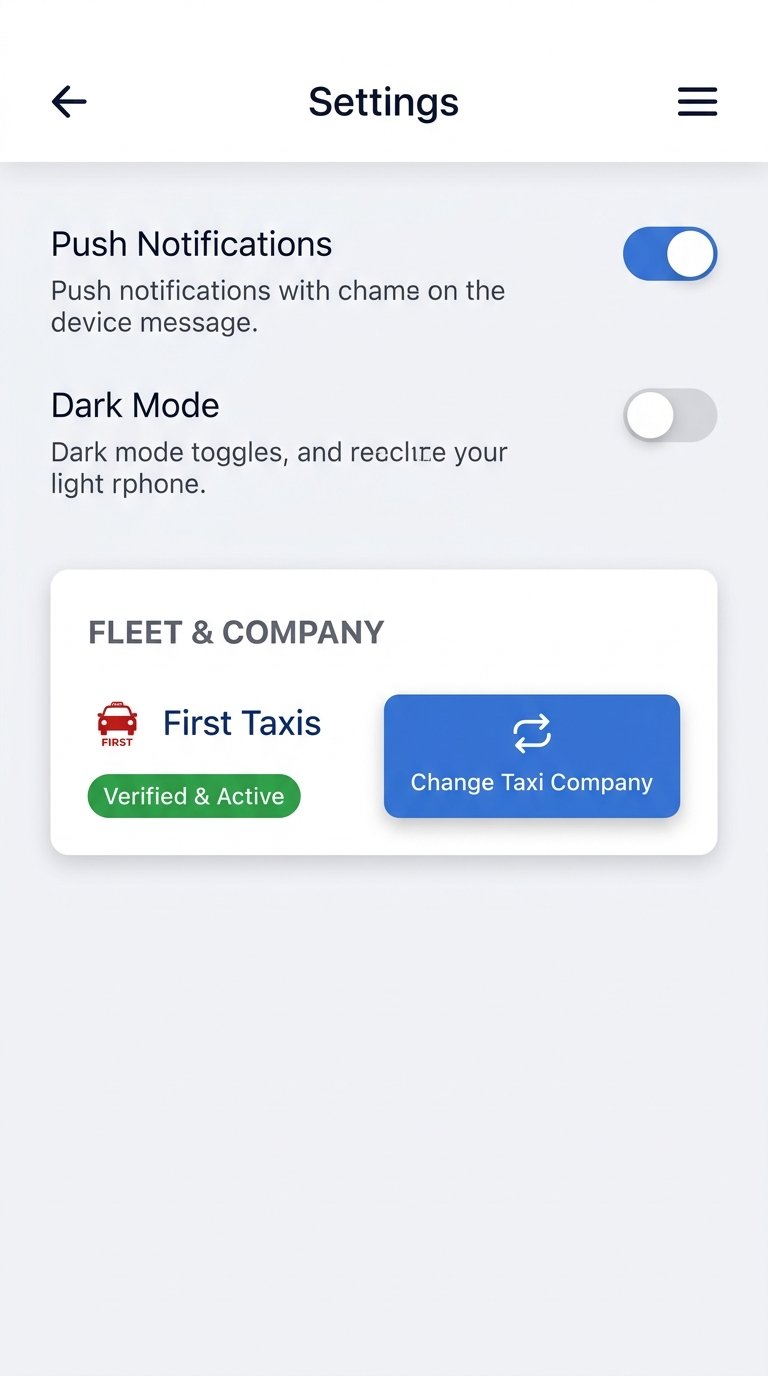 ● Fleet Settings & Switch
Quick Reference Cheat Sheet
| App State | Fields Required |
|---|---|
| First Launch | Company ID & Key (Once Only) |
| Daily Shifts | Driver Username & Password |
| Post-Logout | Driver Username & Password |
| Switch Company | Settings ➔ Change Company |
Common Driver Questions
No! Only once during setup. Daily shifts only require your username & password.
Tap the [Change] button on the login screen to update it anytime.
Yes! Scanning the office QR code connects any driver in 2 seconds.